
Multi-currency checkout problems are usually not caused by the symbol a shopper sees. They happen when the cart, the payment request, and the final confirmation stop referring to the same currency. A store can look correct while an underlying checkout is using a different assumption. That is why a WooCommerce multi-currency payment gateway needs to start with the live cart rather than a static pricing record.
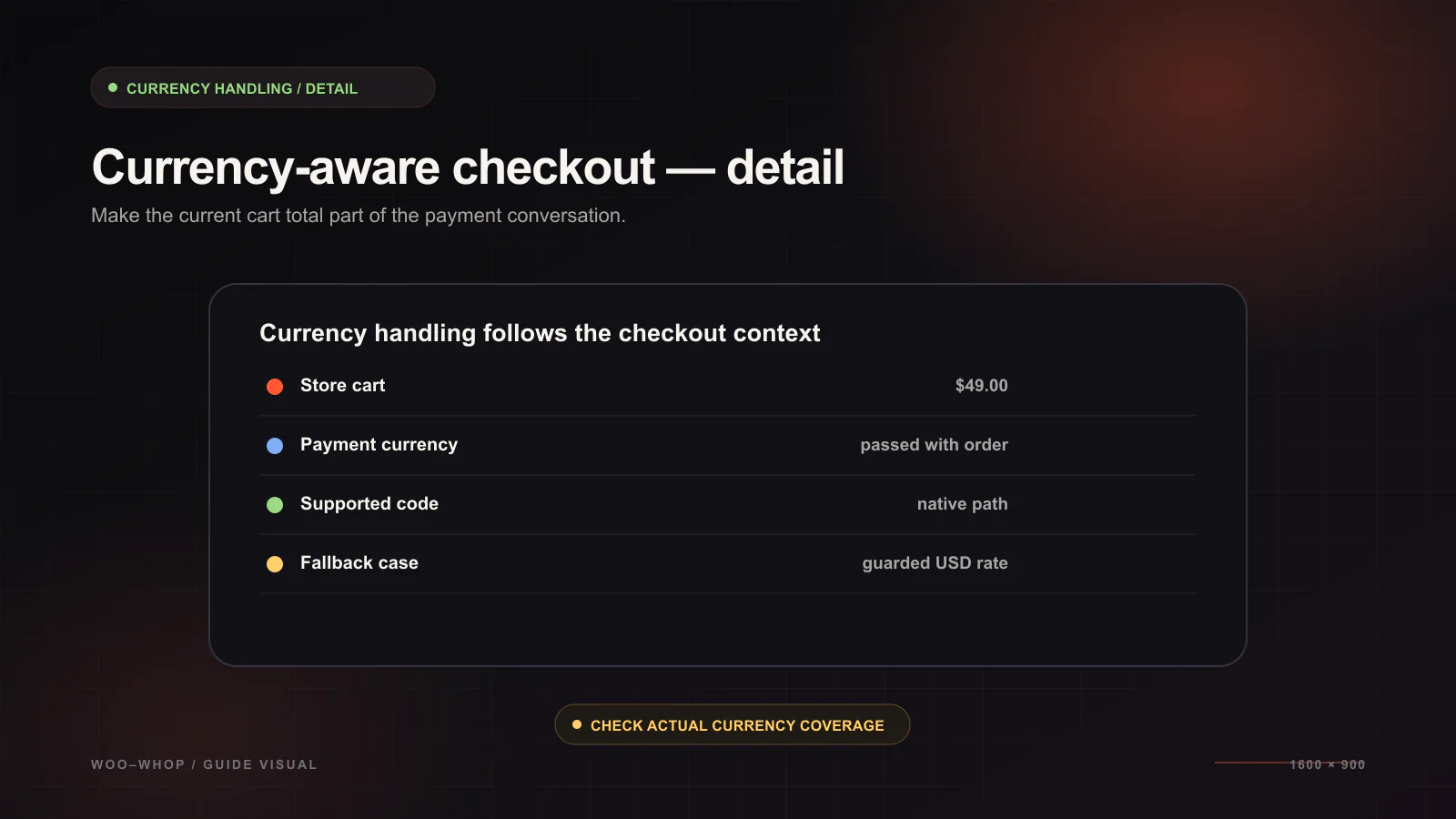
Woo-Whop reads the WooCommerce cart currency when it creates the one-time plan for a checkout. For 47 listed native store currencies, that currency can be used natively. For another store currency, the checkout uses a guarded live rate to convert it to USD. The payment confirmation then checks the expected amount and currency before WooCommerce treats the order as paid.
Start with the current WooCommerce cart
Currency matching begins at the only point where the store knows exactly what the customer is buying: the active cart. Woo-Whop creates a one-time plan from that cart instead of asking you to keep an independent product-to-plan map. This reduces the chance of a stale manually entered value becoming the basis for the payment step.
It also makes the currency decision visible in one place. You manage the product and cart context in WooCommerce. The gateway reads that context at checkout, creates the payment flow, and uses the expected amount and currency again when it validates the signed payment event. For the broader design, see how checkout creation works from the live WooCommerce cart.
Native currency support and USD conversion
| Store-currency situation | Payment handling to test |
|---|---|
| One of the 47 listed native store currencies | The checkout can use that store currency natively. |
| A store currency outside the listed native set | The checkout converts to USD using a guarded live rate. |
| A store using a currency switcher or localisation rule | Test the cart, checkout display, and confirmation for each configuration that customers can reach. |
"Guarded" matters because the conversion must be explicit. Do not assume that a numeric value means the same thing in every currency. In your own test record, note the cart currency, the amount displayed in checkout, and the resulting order details. That simple trace makes it much easier to diagnose a mismatch before live traffic encounters it.
How the verified payment flow protects the expected values
The checkout request is only one half of the flow. After payment, Woo-Whop handles a signed payment.succeeded event. It checks the expected plan and company, then validates the amount and currency expected for the order. The point is to avoid treating an unrelated or mismatched event as evidence that a particular WooCommerce order has been paid.
- A customer reaches checkout with a WooCommerce cart and active currency.
- The gateway creates a one-time plan from that live cart.
- The customer uses Embed, Popup, or Direct Redirect to enter the payment flow.
- The signed payment event is checked against the plan, company, amount, and currency.
- WooCommerce can then move forward with the matching order.
For the security and endpoint setup behind that process, read how signed Whop payment events are validated in WooCommerce.
Test a multi-currency checkout before going live
Sandbox is the right place to test the order path. It lets you inspect the payment experience and resulting WooCommerce order without treating a live transaction as a configuration experiment. Work through a representative set of currencies rather than only the store default.
- Enable sandbox in the WooCommerce gateway settings.
- Choose a simple test product with a clear price.
- Set the store or visitor-facing cart to one native currency you actually use.
- Confirm the cart, checkout presentation, and order context agree on the currency.
- Repeat for a second native currency if your store supports it.
- If you use a currency outside the native list, document the USD conversion shown by the checkout and compare it with the WooCommerce order context.
- Confirm that the signed
payment.succeededpath validates the expected amount and currency.
Pair currency testing with language testing
Currency is not the only international checkout detail. The Whop payment form offers 28 language options and can map automatically to the WordPress locale. If a site uses translated checkout content or regional storefront variations, test those alongside the relevant currency. Look for plain-language consistency: the product name, total, currency designation, and the surrounding WooCommerce labels should be understandable together.
The mode you choose can also affect what should be tested. Embed keeps the payment form on the WooCommerce checkout page, Popup presents it in an on-page checkout window, and Direct Redirect moves the payment step to Whop's hosted page. All three are worth testing in the same currency configuration you intend to use live. See the three-mode checkout guide for the layout and compatibility trade-offs.
Common configuration questions
Do I need to create a Whop plan for each currency?
No manual product-to-plan mapping is required. The gateway creates a one-time plan from the live cart. That avoids maintaining separate plan IDs just because a WooCommerce storefront price changes. Read the manual plan ID guide for a focused explanation.
Does multi-currency remove the need for a review process?
No. It makes the payment path clearer, but store owners still need to review their own catalogue, tax settings, translated copy, and customer-facing policies. The gateway's role is to use the live checkout context, provide the supported payment flow, and validate the expected payment result.
Before switching to live settings, confirm that the site uses HTTPS, the webhook endpoint is registered, sandbox orders behave as expected, and each priority currency configuration has been checked. That is the practical route to a WooCommerce and Whop checkout that keeps the cart and payment currency aligned.