
A checkout page can tell a customer that a payment is in progress, but your store should not mark an order paid because a browser returned to a thank-you page. The reliable confirmation path is the signed Whop webhook sent to WooCommerce after payment.
This article explains what Woo-Whop checks before it completes an order, how to configure the endpoint safely, and what to investigate when an otherwise successful payment does not update WooCommerce. It uses the real plugin behaviour rather than promising a vague “double-confirm” process.
Why a payment webhook is the source of truth
Browser redirects are useful for customer experience but are not a dependable accounting signal. A customer can close a tab, lose connectivity, reload a page, or arrive back at the store before an asynchronous payment result settles. A webhook is a server-to-server event delivered to the WooCommerce site.
Woo-Whop listens for payment.succeeded. When it receives a valid paid event for the expected checkout, it can complete the matching WooCommerce payment. That allows your normal WooCommerce order-status, stock, email, and fulfilment configuration to run from the paid order state rather than from a customer-visible redirect.
The callback URL and values you need
Open the Whop gateway settings in WooCommerce and copy the callback URL displayed there. The standard pattern is:
https://yourstore.com/?wc-api=whop_webhookCreate an endpoint in Whop that points to the exact URL. Subscribe it to payment.succeeded, then copy Whop’s webhook signing secret into the matching WooCommerce setting. The API key and Company ID identify the payment account; the webhook secret is what authenticates incoming events.
| Setting | Purpose |
|---|---|
| API key | Lets the gateway create the checkout configuration. |
| Company ID | Identifies the Whop company expected on a payment. |
| Webhook URL | Public WooCommerce endpoint that receives payment events. |
| Webhook signing secret | Lets the gateway verify the authenticity of an incoming event. |
What signed webhook verification checks
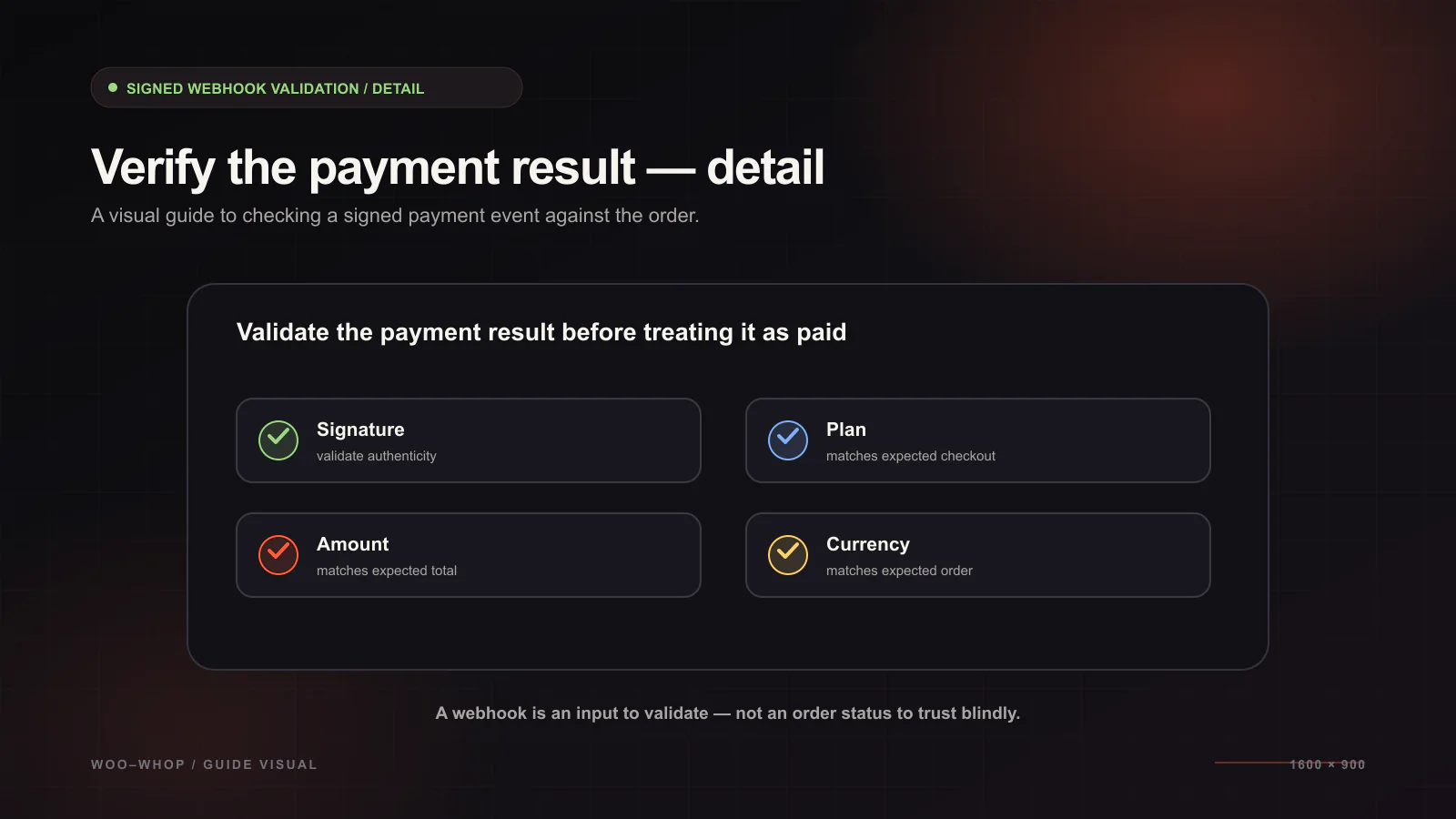
Woo-Whop uses signed-event verification for the webhook path. In practical terms, it validates the signature calculated over the event data and uses a limited replay window. A copied old request should not become a new payment event later.
After validating the signed event, the gateway only accepts an event that meets the payment matching rules:
- It is the expected
payment.succeededevent. - The event represents a paid payment.
- The payment is associated with the expected one-time Whop plan created for the WooCommerce checkout.
- The payment belongs to the configured Whop company.
- The amount and currency match the values the plugin expected for the WooCommerce order.
Only after those validations does the gateway invoke WooCommerce payment completion. This is why the correct claim is signed webhook verification with server-side payment matching, not “every webhook makes a fresh Whop API request.” Some return or recovery paths can query Whop separately, but the signed webhook handler validates the signed event itself.
How the order and payment are correlated
When a buyer starts checkout, the gateway creates a one-time plan from the live order total and retains the information required to find the order when confirmation arrives. It does not rely on a generic success message or a customer-controlled browser field.
The matching step is deliberately strict. A valid event for another company, another plan, another amount, or another currency should not mark the order paid. That protects the store from accidental cross-environment configuration and from treating an unrelated payment as the customer’s order.
Sandbox test checklist
Run the following on a public staging domain or a tunnel that Whop can reach. A local localhost address cannot receive a callback from Whop.
- Enable sandbox mode and enter the matching sandbox API key, Company ID, endpoint, and signing secret.
- Place an order using the checkout mode you intend to use in production.
- Verify that the amount and currency shown align with the cart calculation you tested.
- Inspect the WooCommerce order after the successful sandbox payment. It should move through the paid-order path without manual intervention.
- Review the endpoint delivery in Whop if the order remains pending. Check the status code, callback URL, event name, secret, and environment.
Common failure modes and what they mean
A payment succeeds but the order stays pending
First inspect whether the expected payment.succeeded event was delivered. If it was not, check the endpoint subscription and environment. If it was delivered, verify that the signing secret saved in WooCommerce matches the endpoint and that the order’s expected currency and amount match the test path.
The webhook returns 404
Copy the exact callback URL from the WooCommerce gateway settings and ensure it is public and reachable over HTTPS. The callback is a WooCommerce query-string endpoint; changing WordPress permalinks is not the standard fix for this route.
Sandbox works but live orders stay pending
Sandbox and live values must be deliberately matched. Replace the API key, Company ID, endpoint subscription, and signing secret with the live equivalents before turning sandbox mode off.
A verified payment arrives before an order can be matched
The plugin can record a verified unclaimed payment for review in its status tools. Treat that as a reconciliation task. It does not promise to create a missing order automatically or to grant delivery without your review.
Operational rules that keep confirmation reliable
- Never use a customer return URL alone as proof that an order is paid.
- Do not use the same webhook secret across an unrelated endpoint or environment.
- Keep WordPress, WooCommerce, and Woo-Whop updated before changing the checkout.
- Preserve logs and the order number when opening a support request, but never include API keys or signing secrets.
- Test the chosen checkout mode, store currency, and fulfilment workflow together before launch.
Where webhook verification stops
Webhook validation confirms a payment event and completes the matching WooCommerce order. It does not determine merchant eligibility, guarantee payment-method availability, decide whether a customer may access a third-party community, or replace a fulfilment integration. Keep those policies and automations separate from the payment confirmation path.
Set up a payment confirmation path you can test
Configure the signed callback, run a sandbox order, and let WooCommerce complete only matched payment events.
Open webhook setup steps →