
A Whop WooCommerce integration should leave WooCommerce in charge of the storefront and order while giving customers a clear Whop card-and-crypto payment path. Woo-Whop is built for that job: it creates a one-time Whop plan and checkout from the live WooCommerce order total, then validates a signed payment event before WooCommerce marks the matching order paid.
This guide shows the complete setup for the current plugin release. It focuses on what the gateway actually controls: checkout creation, three checkout modes, signed webhook confirmation, currency handling, language selection, and sandbox testing. It does not create a recurring membership lifecycle, configure merchant eligibility, or provide third-party fulfilment such as Discord roles or licence delivery.
What the Whop WooCommerce plugin connects
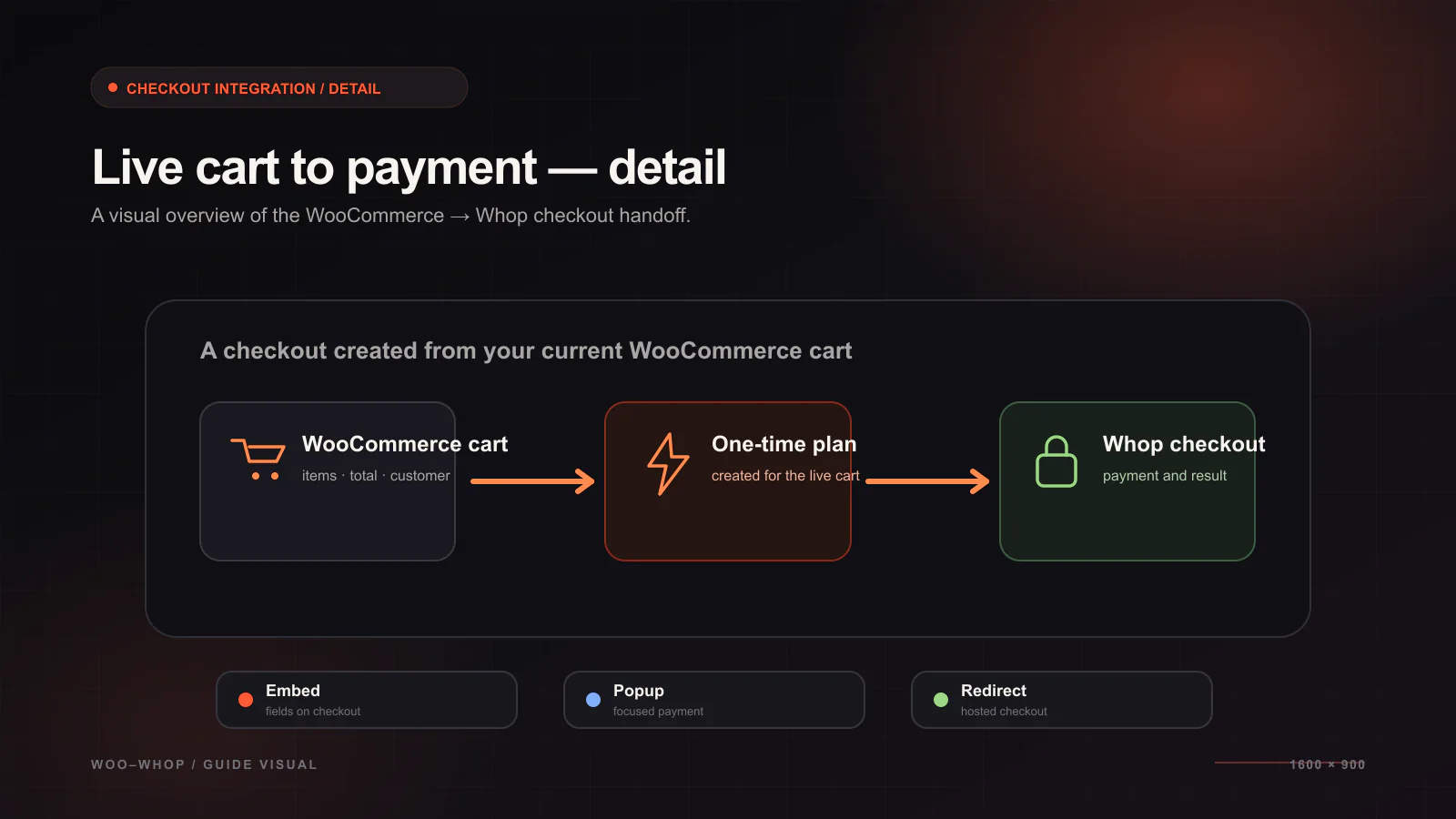
The Woo-Whop payment gateway connects three systems in one deliberate sequence:
- WooCommerce owns the store: products, quantities, coupons, shipping, taxes, stock, and the order record stay in WooCommerce.
- Whop handles the payment flow: the plugin creates a one-time plan and checkout configuration from the live amount. You do not manually map every WooCommerce product to a static Whop plan ID.
- The webhook confirms the result: WooCommerce receives a signed
payment.succeededevent and validates the expected plan, company, amount, and currency before completing the payment.
That separation matters. It means a product price change, coupon, or shipping calculation is taken from the live cart at checkout rather than from a second catalogue you must keep in sync.
Before you start: requirements and decisions
Prepare the store before adding credentials. The plugin supports WordPress 6.0 or newer, WooCommerce 7.0 or newer, PHP 7.4 or newer, Classic checkout, the WooCommerce Checkout Block, and HPOS. Live payments require HTTPS on the checkout domain.
| Have this ready | Why it matters |
|---|---|
| Whop API key and Company ID | They identify the Whop account used to create checkout sessions. |
| Webhook signing secret | It lets the gateway verify that a payment event genuinely came from Whop. |
| A sandbox test plan | You need to test the chosen checkout mode, currency, and order status before accepting live orders. |
| Your fulfilment workflow | Woo-Whop confirms payment; downloads, memberships, licences, and community access remain WooCommerce or separate-tool decisions. |
Step 1: install and activate Woo-Whop
Download the ZIP from the purchase account. In WordPress, open Plugins → Add New → Upload Plugin, select the ZIP, install it, and activate it. Then open WooCommerce → Settings → Payments, find Whop, and choose Manage.
Activate the licence so the installation can receive updates. Before changing live checkout, make a backup and use staging if the store is already taking orders.
Step 2: enter the Whop credentials
In the Whop dashboard, create or retrieve the API key for this store and copy the Company ID. Paste both values into the Whop gateway settings in WooCommerce. Keep sandbox mode enabled while you configure the integration.
Treat the API key as a secret. It should never appear in a page builder field, an email, a screenshot, source control, or a support ticket. If you believe it has been exposed, revoke it in Whop and save a replacement in the gateway settings.
Step 3: register the signed payment webhook
The webhook is the confirmation bridge from Whop back to WooCommerce. Copy the exact callback URL shown by the gateway. It follows this pattern:
https://yourstore.com/?wc-api=whop_webhookIn Whop, create the endpoint using that exact public URL, subscribe to payment.succeeded, and copy the webhook signing secret back into the WooCommerce gateway settings. Use matching sandbox values while testing and matching live values when launching.
For the signed webhook path, the gateway verifies the event signature and then checks that the event is a paid payment for the expected plan and company, with the expected amount and currency. Only then does it call WooCommerce payment completion. Some return and recovery paths can additionally query Whop, but the signed webhook itself is not marketed as a generic “double API confirmation.”
Read the deeper implementation notes in the signed Whop webhook verification guide.
Step 4: choose the checkout mode
Woo-Whop gives you three supported payment presentations. They use the same cart-derived checkout and webhook matching, but they do not present the form in the same place:
- Embed on Checkout: Whop card-and-crypto fields render in the WooCommerce payment area. WooCommerce’s own Place Order action starts the normal payment flow.
- Embedded Checkout Popup: the payment form opens in an on-page modal after the customer starts checkout.
- Direct Redirect: the current tab goes to a Whop-hosted checkout page.
Start with Embed on Checkout for a conventional WooCommerce theme, then test it thoroughly. Use Popup when you want payment separated from a busy checkout. Use Direct Redirect when a page builder or checkout customization conflicts with embedded payment UI. The mode comparison guide walks through the trade-offs.
Step 5: configure the payment form deliberately
For embedded experiences, choose a light or dark theme, optional high-contrast mode, accent and background colours, and a corner radius that matches your checkout. You can choose one of 28 supported payment-form languages or use the WordPress site locale when it maps to a supported language. Automatic mode is a site-locale mapping, not browser or visitor-location detection, so test every translated checkout you ship.
The plugin passes 47 listed store currencies to Whop natively. If the configured store currency is outside that list, the plugin converts the order amount to USD using a live exchange rate with safeguards. That is a reason to test your real commercial currencies and coupon/shipping combinations in sandbox rather than assume every currency follows the same route.
Step 6: run a full sandbox order
A useful test is not just “the form loaded.” Place a sandbox order from cart through the order-received page and verify each point below.
- The checkout appears in the intended place: embedded fields, popup, or hosted redirect.
- The order amount includes the live cart’s quantity, coupon, and shipping values.
- The selected currency follows the native or USD-conversion path you expect.
- The signed
payment.succeededevent reaches the callback and completes the matching WooCommerce order. - Your own stock, download, email, or fulfilment workflow runs after WooCommerce considers the order paid.
If the payment succeeds but the order remains pending, stop and check the callback URL, event subscription, signing secret, environment match, and public HTTPS reachability. Do not work around a missing payment confirmation by manually treating every return redirect as paid.
Go live without changing two things at once
When sandbox works, replace the sandbox API key, Company ID, webhook subscription, and webhook secret with the corresponding live configuration. Confirm HTTPS is active and run a controlled live test only when the matching live webhook is ready.
Keep the checkout design change isolated from other theme or checkout-plugin changes. If you need to change a page builder, payment mode, and currency plugin, stage and test them one at a time. That makes it possible to identify the source of a problem before real customers find it.
Where to go next
Use the Woo-Whop setup documentation as the operational checklist. Then choose a checkout mode and review the signed webhook guide. If you sell digital goods or memberships, decide separately how WooCommerce or another fulfilment tool should grant access after the paid order state changes.
Connect Whop to WooCommerce with a testable payment path
Start in sandbox, validate the signed payment event, and choose the checkout mode that fits your store.
View Woo-Whop plans →