
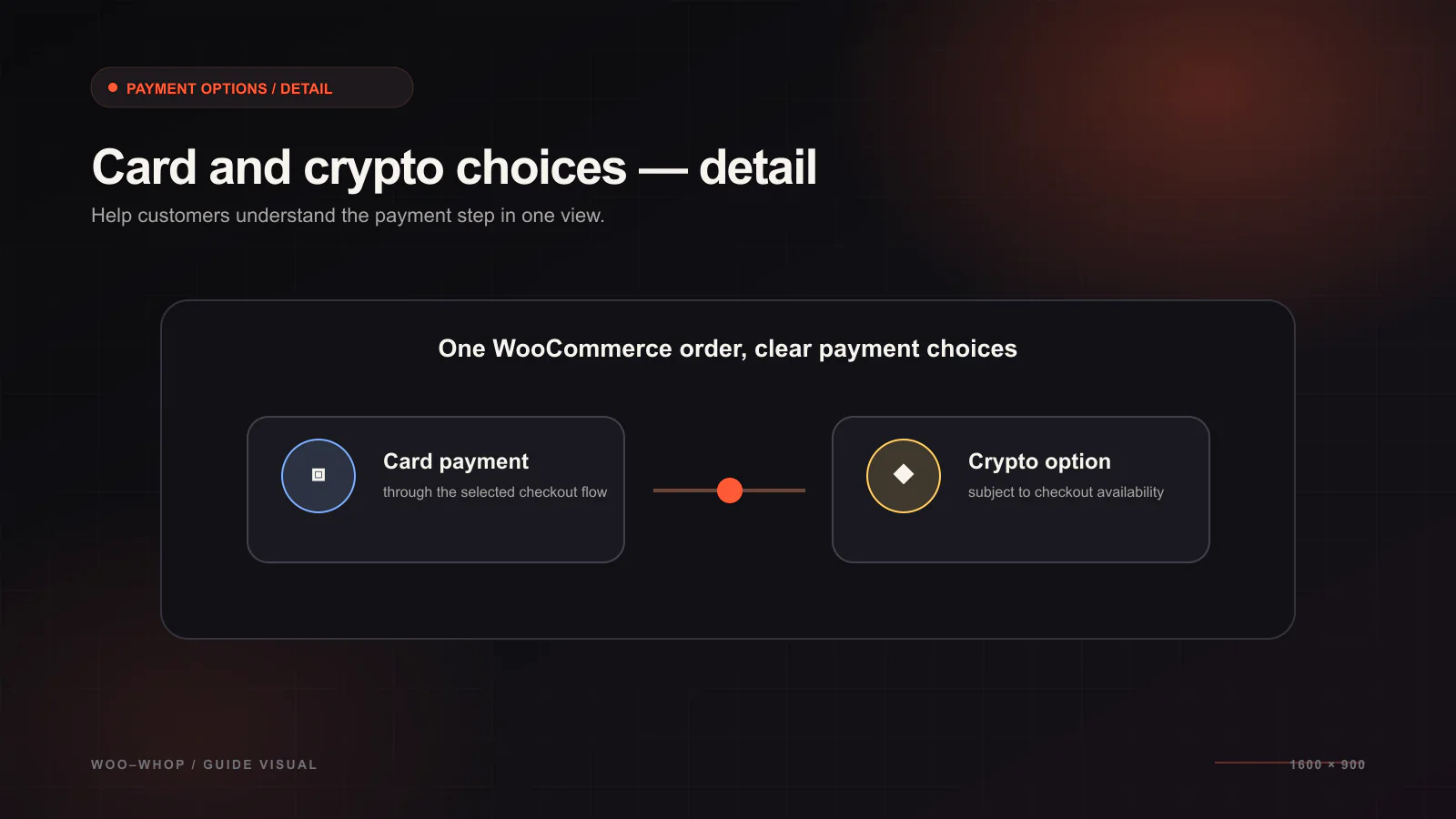
For a WordPress store, accepting more than one payment type should not mean inventing separate order-confirmation rules for each checkout path. Woo-Whop connects a WooCommerce cart to Whop checkout, where card and crypto payment options can be shown subject to Whop availability. The gateway then uses the same verified order path: a signed payment.succeeded event must match the expected plan, company, amount, and currency before WooCommerce treats the order as paid.
That distinction is important. This integration does not promise that a specific payment method is available in every situation. It gives the store one WooCommerce payment connection that can present the payment options Whop makes available, while keeping the live cart and paid-order confirmation connected.
What you need before configuring payment
- A WordPress site with WooCommerce installed and an active checkout.
- Woo-Whop installed and activated.
- The required Whop credentials entered in WooCommerce payment settings.
- A registered webhook endpoint for signed payment confirmation.
- Sandbox enabled while you test the flow.
- An HTTPS site before you enable live payment settings.
Woo-Whop supports Classic checkout, Checkout Block, and HPOS. That gives you a compatible starting point across common WooCommerce configurations, but you should still test the theme and other checkout extensions that your own customers use.
How the payment flow connects to the cart
The payment request begins with the live WooCommerce cart. Woo-Whop creates a one-time Whop plan at checkout instead of requiring a static plan ID for every product. This keeps product and cart management in WooCommerce while creating a payment context for the specific order being placed.
- The customer adds products to the WooCommerce cart.
- The gateway creates a one-time plan from the current cart.
- The customer reaches Whop checkout through the selected mode.
- Available card and crypto payment options are presented by Whop where available.
- The signed payment confirmation is checked against the expected order values.
- WooCommerce can mark the matching order paid.
If you have previously maintained individual payment references for products, read why live-cart checkout creation removes manual plan mapping.
Choose how payment appears in WordPress
| Checkout mode | Payment presentation | Good test question |
|---|---|---|
| Embed | The payment form appears in the WooCommerce checkout page. | Does it fit naturally with the checkout fields and mobile layout? |
| Popup | The payment flow opens in an on-page checkout popup. | Does the popup open, close, and resize clearly on the devices customers use? |
| Direct Redirect | The customer continues to Whop's hosted payment page. | Does the hosted flow suit the store's theme and checkout compatibility needs? |
All three modes use the same live-cart creation and signed confirmation model. The difference is presentation. See the three checkout modes compared for an implementation-focused guide.
Why signed confirmation matters for card and crypto options
A payment method label on a checkout page is not the same as a verified order. The gateway waits for the signed payment.succeeded event and validates four expected values:
| Expected value | Purpose |
|---|---|
| Plan | Matches the event to the one-time checkout that was created. |
| Company | Matches the event to the configured Whop account context. |
| Amount | Confirms the payment is for the expected checkout total. |
| Currency | Confirms the expected currency context is preserved. |
That check is valuable regardless of which payment option a customer selects. For the endpoint and sandbox procedure, follow the secure Whop webhook guide for WooCommerce.
Test payment availability and the shopper experience honestly
Because card and crypto options are subject to Whop availability, the right customer-facing approach is clear, accurate language rather than an unconditional promise. Use sandbox to inspect the payment flow configured for your account, and do not name or advertise individual methods unless you have confirmed that they are available for the relevant checkout context.
Test the surrounding WordPress experience too: product page wording, cart total, checkout mode, order-received page, and support contact path. The payment gateway gives you the payment and order-confirmation layer; your store still needs to explain what it sells and how customers receive help.
International checkout considerations
Woo-Whop supports 47 listed native store currencies. Other store currencies are converted to USD using a guarded live rate. The payment form has 28 language options and can map automatically to the WordPress locale. If your site serves multiple regions, test the live cart currency and WordPress locale combinations that matter most instead of relying only on the default store view.
For a concrete currency test plan, read how to match WooCommerce cart currencies in Whop checkout. For step-by-step settings, use the Woo-Whop documentation.
The result is a straightforward WordPress payment architecture: WooCommerce remains the storefront, Whop can present card and crypto options where available, and the order is only treated as paid after the expected signed confirmation is validated.