
When an embedded payment view does not display as expected, the right response is not to weaken browser security controls or try to work around them. Payment pages are intentionally protected by browser and platform policies. The productive route is to identify the presentation mode, test it in sandbox, and use one of the supported Woo-Whop checkout modes that fits the theme and checkout build.
Woo-Whop gives WooCommerce stores three ways to present the same payment path: Embed, Popup, and Direct Redirect. The gateway still creates the payment from the live WooCommerce cart and still relies on the signed payment confirmation before the order is marked paid. What changes is where the customer sees the payment step.
Why an embedded checkout can be affected by security controls
Modern browsers and payment systems use frame restrictions, sandbox policies, and related security measures to prevent one site from silently placing sensitive content inside an untrusted context. These controls are useful. A display problem can be caused by a heavily customised checkout, theme scripts, browser extensions, a development environment, or a setting that changes how the payment area is opened.
Do not disable security headers or attempt a workaround that changes the safety model of the payment step. Instead, start by confirming the supported checkout mode and testing the normal configuration in sandbox. If Embed is not suitable for a particular storefront build, Popup or Direct Redirect provide supported alternatives without changing the payment verification path.
Compare the supported checkout modes
| Mode | Where payment appears | Useful testing focus |
|---|---|---|
| Embed | Inside the WooCommerce checkout page. | Theme checkout layout, payment section visibility, and mobile spacing. |
| Popup | In an on-page checkout popup. | Popup opening, keyboard focus, close behaviour, and mobile viewport. |
| Direct Redirect | On Whop's hosted payment page. | Return journey, order confirmation, and compatibility with customised checkout templates. |
There is no need to change the underlying order-confirmation model when switching modes. The checkout still comes from the live WooCommerce cart, and the signed payment.succeeded event still needs to match the expected plan, company, amount, and currency before WooCommerce treats the order as paid.
A safe sandbox troubleshooting sequence
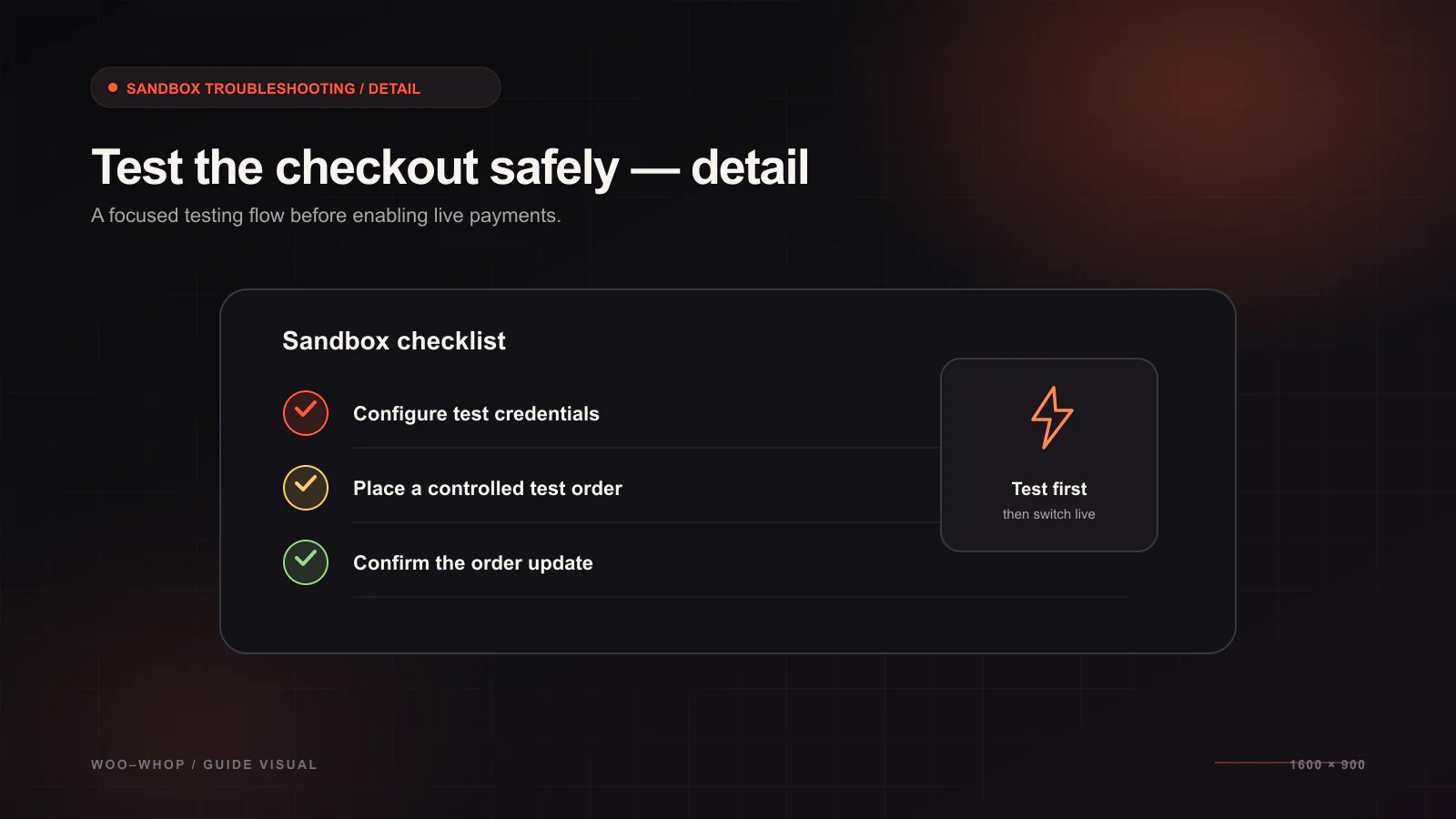
- Keep the gateway in sandbox mode while you investigate the display issue.
- Use a simple test product and a standard checkout page before testing complex bundles of extensions.
- Confirm whether the store is currently configured for Embed, Popup, or Direct Redirect.
- Test the same checkout in a current desktop browser and on a real mobile device.
- Temporarily check for a theme or checkout customisation conflict in a safe staging environment, not on a live payment session.
- Try Popup or Direct Redirect if the current theme setup is not a good fit for Embed.
- Confirm that the webhook path receives and validates the signed test payment event.
Testing the full order path matters more than only seeing a payment panel appear. A visible interface is not enough if the order confirmation does not reach WooCommerce. The endpoint should be registered, and the resulting signed payment.succeeded event should be checked against the expected plan, company, amount, and currency.
Use HTTPS for live checkout traffic
Sandbox is useful for configuration work, but a live payment flow needs an HTTPS site. Make sure the checkout page, the webhook endpoint, and the visitor-facing storefront load over HTTPS before changing the gateway to live settings. A secure site setup also helps reduce confusing browser warnings that can make payment troubleshooting harder to interpret.
What to inspect before changing settings
- Checkout type: Classic checkout and Checkout Block can have different layout and extension behaviour. Woo-Whop supports both, as well as HPOS.
- Theme customisations: Check whether custom scripts move, hide, or replace the WooCommerce payment section.
- Testing environment: Confirm that the test uses the same domain and HTTPS behaviour expected for the live store.
- Checkout mode: Make an intentional mode choice rather than assuming Embed must fit every layout.
- Webhook configuration: Confirm the event reaches the expected endpoint and the verification checks pass.
When Direct Redirect is the sensible answer
Direct Redirect is not a failure mode. It is a supported presentation choice for stores whose checkout layout is unusually customised or where you want a clearer separation between the cart and hosted payment step. Popup is useful when you want to keep the store page context visible while separating payment visually. Embed is useful when the payment form fits naturally inside the WooCommerce checkout. The right choice is the one that you can test end-to-end without compromising the security posture of the site.
For a decision-oriented comparison, read the Embed, Popup, and Direct Redirect checkout guide. For the payment-confirmation side, continue with the signed webhook validation guide. If your main concern is getting the live cart into the payment flow without manual mapping, see how Woo-Whop creates checkout from the WooCommerce cart.